mirror of
https://github.com/litruv/AudioSort.git
synced 2026-09-10 01:59:38 +10:00
3
Library Workflow
Max Litruv Boonzaayer edited this page 2025-11-12 02:55:46 +11:00
Here’s how the whole audio management loop works inside AudioSort — from scanning to tagging to cleaning things up.
Initial Scan
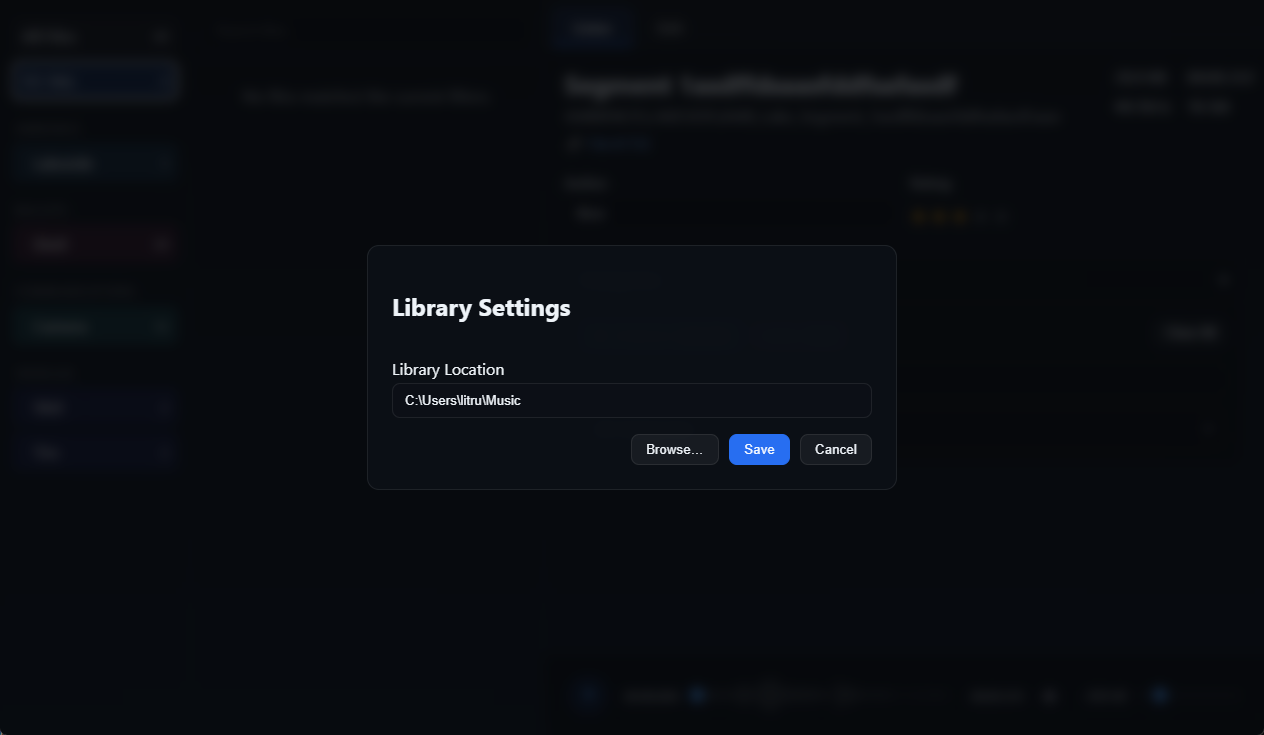
- Pick your library folder when you first launch the app (or later via Settings → Library Path).
- Hit Rescan Library in the File menu — AudioSort will crawl all your
.wav/.wavefiles, grabbing duration, bit depth, checksums, and waveform previews. - If you’ve deleted something from disk, it drops from the database automatically. Unchanged files keep their tags and metadata intact.
Tagging and Categories
- AudioSort writes metadata straight into the WAV’s INFO chunk and keeps a copy in its SQLite database.
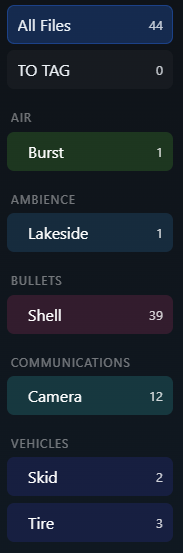
- UCS categories come from the built-in catalog. Tags are free-form — use whatever suits your workflow.
- The File List panel supports batch edits. Any updates stick even if you move or rename the files later.
Organising
- Organise File moves a file based on its main category. Folder names are built from UCS codes plus your own custom label.
- Rename tweaks the file’s title and display name without changing its folder.
- The duplicate finder uses checksums to spot identical audio so you can merge or delete the extras fast.
📸 Suggested screenshot: demonstrate the organise dialog or duplicate results list. Add it as
assets/organize-dialog.pngwith.
Splitting Audio
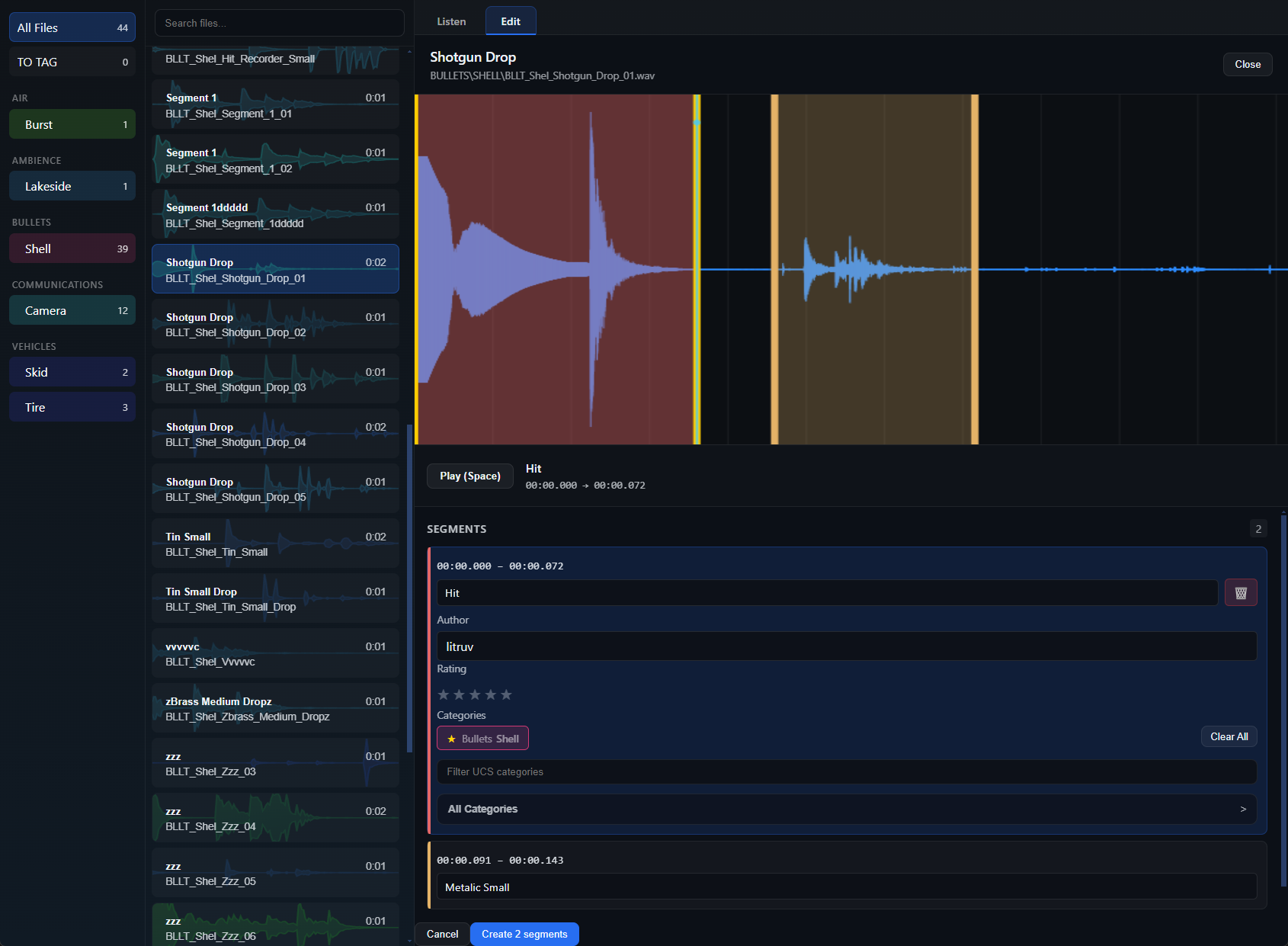
- Open a file and drop in segments — set start/end times in ms, with optional names and tags.
- Each split exports as a new WAV that inherits all metadata and links back to the parent via INFO data.
- New segments get scanned automatically, land in the JUST SPLIT filter, and are ready for tagging without a rescan.
Search
- The search bar does fuzzy matches on file names, tags, categories, and paths.
- You can also use filters like
author:<name>to dig into embedded metadata.